Lead Finesse's email automation feature enables seamless outreach by automating your email campaigns. This guide covers how to set up email automation, including connecting Gmail, Outlook, or custom SMTP email providers.
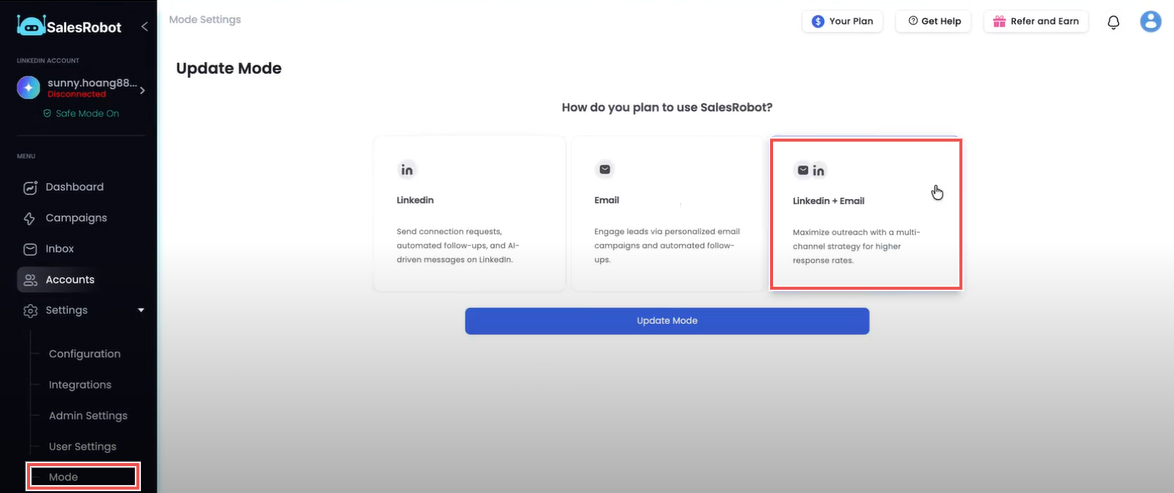
Before adding an email account, you must switch your account mode from the default LinkedIn-only mode to LinkedIn + email mode.
- Log in to your Lead Finesse account.
- Go to Settings.
- Change the mode from LinkedIn mode to LinkedIn + email mode.
 After updating, you'll see LinkedIn and Email as separate tabs on the Accounts page.
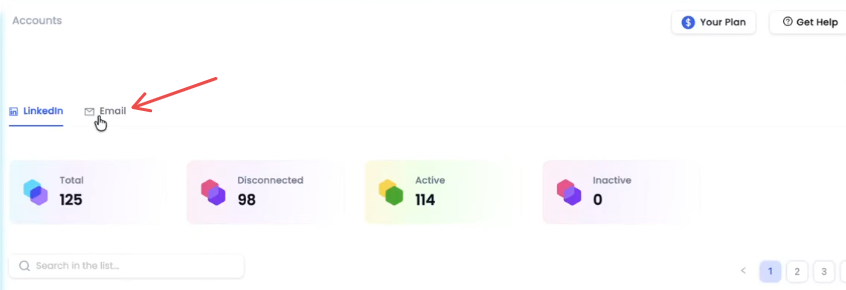
Note: This is a commonly missed step. If you don't see email options in your account, check that you've enabled LinkedIn Plus email mode.
Step 1: Adding Your Email Account to Lead Finesse
Lead Finesse supports three methods for connecting email accounts:
- Gmail (one-click OAuth integration)
- Outlook (one-click OAuth integration)
- SMTP/IMAP (for custom email providers like Zoho, MailDoso, InfraMail, or Mailgun)
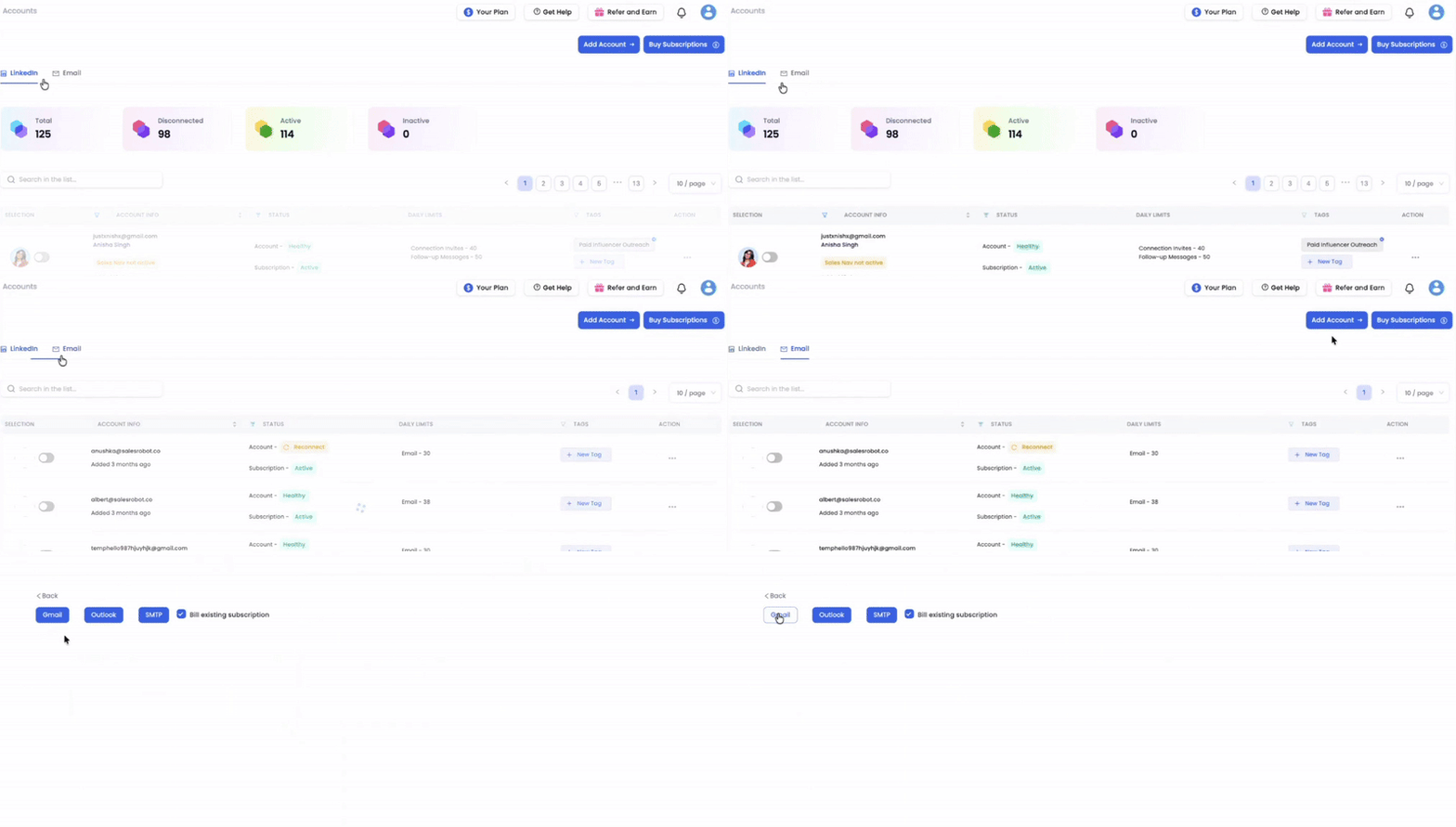
Option A: Gmail or Outlook
- Log in to your Lead Finesse account.
- Go to the Accounts tab and select Add Accounts.
- Select Add Email Account.
- Choose your preferred email service provider (Gmail or Outlook).
- You will be prompted to add or select your account.
Once authenticated, your email account will appear in Lead Finesse.
Option B: SMTP/IMAP (Custom Email Providers)
For email providers like Zoho, MailDoso, InfraMail, or Mailgun, you'll need to configure both SMTP (for sending) and IMAP (for receiving).
- Log in to your Lead Finesse account.
- Go to the Accounts tab and select Add Accounts.
- Select Add Email Account.
- Choose SMTP.
- Enter the following details:
- SMTP Host
- IMAP Host
- Port
- Click Save.
Option C: Connect Gmail With SMTP
If you prefer to connect Gmail using SMTP rather than the one-click integration, follow the process below. This method requires configuring both SMTP (for sending emails) and IMAP (for receiving emails).
Step 1: Verify IMAP is Active
For most personal Gmail accounts, IMAP is enabled by default. To confirm:
- Open Gmail and go to Settings (gear icon) > See all settings.
- Click the Forwarding and POP/IMAP tab.
- Look for a message stating "Access Gmail from other clients using IMAP", this means IMAP is already active.
For Google Workspace Users:
Your organization's admin may have disabled IMAP. To enable it:
- Have your admin sign in at admin.google.com
- Go to Apps > Google Workspace > Gmail > End User Access
- Turn on IMAP Access for your organizational unit
Step 2: Turn On 2-Step Verification
Google requires 2-step verification before you can generate an app password.
- Go to myaccount.google.com and sign in.
- Select Security from the left sidebar.
- Under "Signing in to Google," click 2-Step Verification.
- Click Get Started and follow the prompts.
- Enter your password, then add and verify your phone number via OTP.
- Click Turn On to activate.
Once complete, a checkmark will appear next to 2-Step Verification.
Step 3: Create an App Password
An app password is a 16-character code that allows Lead Finesse to access your Gmail without using your main password.
- Return to the Security section in your Google Account.
- Click 2-Step Verification, then scroll down to App passwords.
- Under "Select app," choose Mail.
- Under "Select device," choose Other (Custom name) and type "Lead Finesse".
- Click Generate.
- A 16-character password will appear—copy it and store it somewhere safe.
Important: You won't be able to view this password again after closing the window.
Step 4: Add Gmail to Lead Finesse
- Log in to Lead Finesse and go to Accounts > Add Accounts > Add Email Account.
- Select SMTP.
- Enter your Gmail address.
- In the password field, paste the app password you generated (not your regular Gmail password).
- Enter the following server settings:
Setting | Value | ---- | SMTP Host | smtp.gmail.com | SMTP Port | 465 | SSL | True | IMAP Host | imap.gmail.com | IMAP Port | 993 | SSL | True |
Your Gmail account should now be connected to Lead Finesse.