If you’ve ever sent an outreach message that felt “too generic,” you already know why personalization matters.
A message that shows you did your homework will always stand out.
But going through every LinkedIn profile, scanning bios, and writing a custom icebreaker for each prospect, it’s just not practical.
This is exactly what AI Variables were built for.
What are AI Variables?
Check out the full tutorial here: [See how AI Variables work]
AI Variables in Lead Finesse let you add personalized, profile-based intros, directly into your messages.
Unlike basic variables (like {{firstName}}), AI Variables actually analyze your prospect’s profile, headline, or activity and create lines that sound like you wrote them.
How to set up AI Variables
Step 1: Start with your campaign
Click Create Campaign and pick LinkedIn or LinkedIn + Email.
Choose **Advanced user **flow
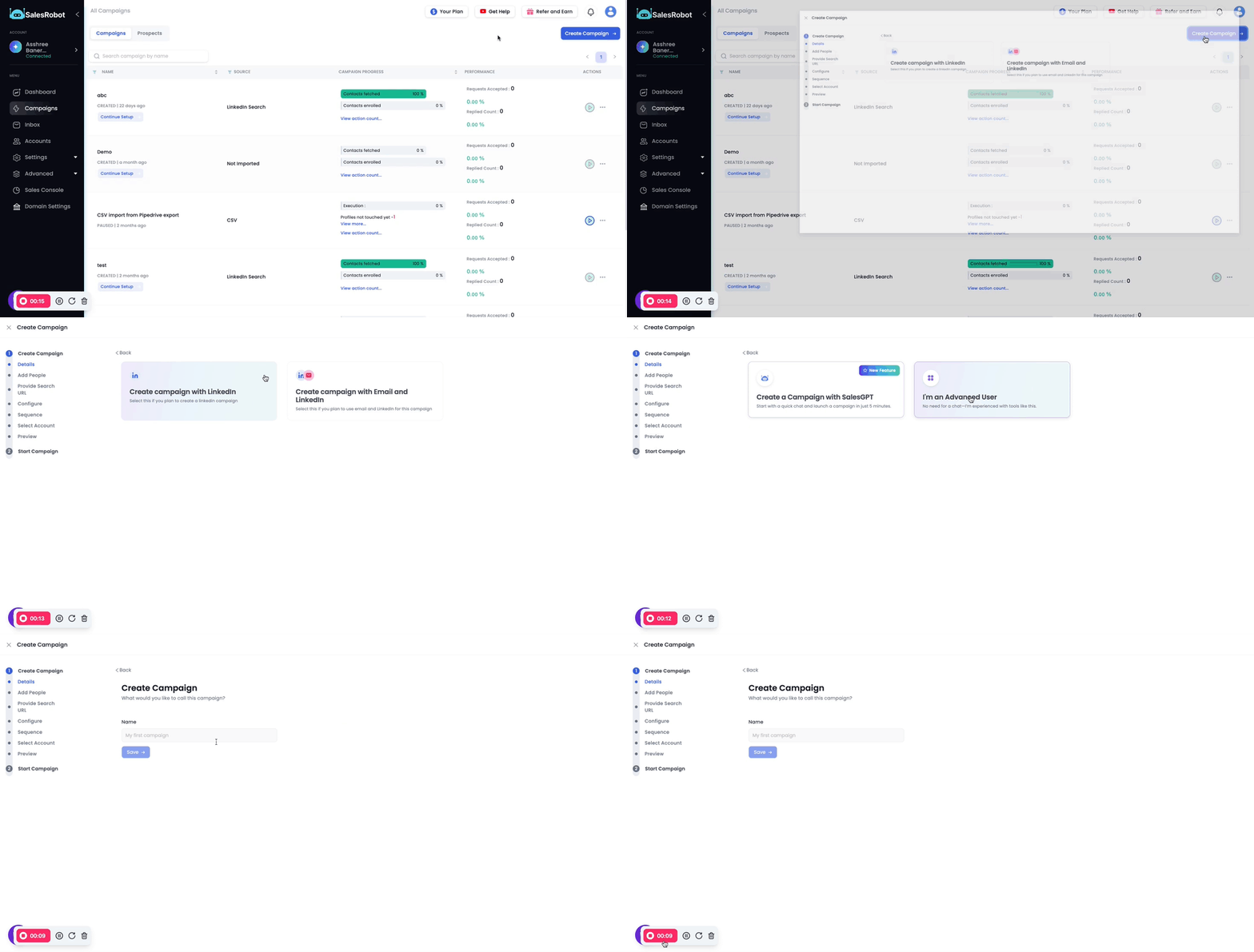
Step 2: Add your leads
Import from Sales Navigator, LinkedIn search, or a CSV.
Give your campaign a name so you can track it later.
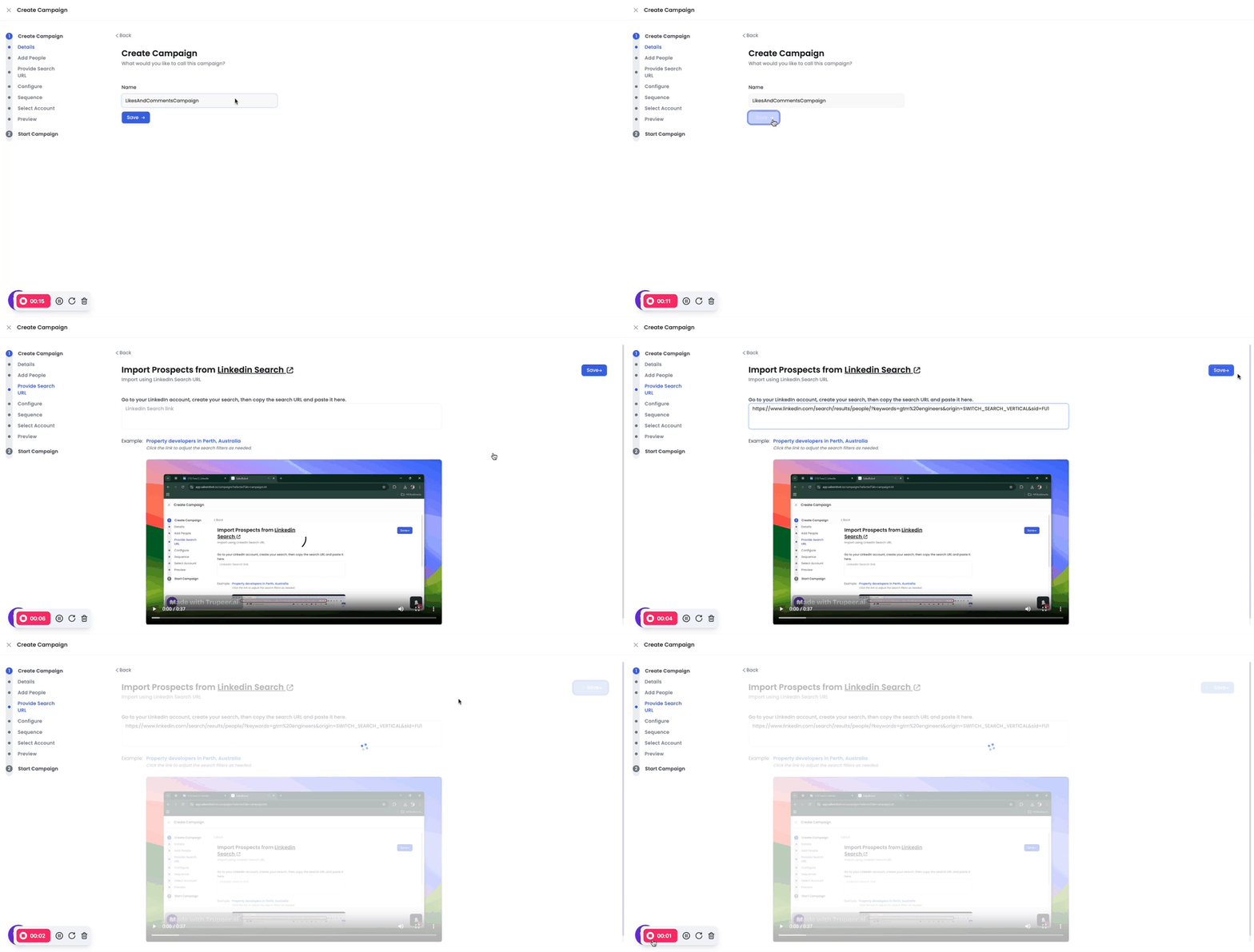
Step 3: Create your sequence
Once you’ve added your prospects
Configure the settings and save.
Then from the create sequence options, select “From scratch”
Step 4: Set Up Connection Request Message
On the connection request step, you’ll see the message box.
Type your base message (e.g.,* “Hi {first_name}, I’d like to connect…”*).
To personalize this message using AI:
- Click “AI Variables”.
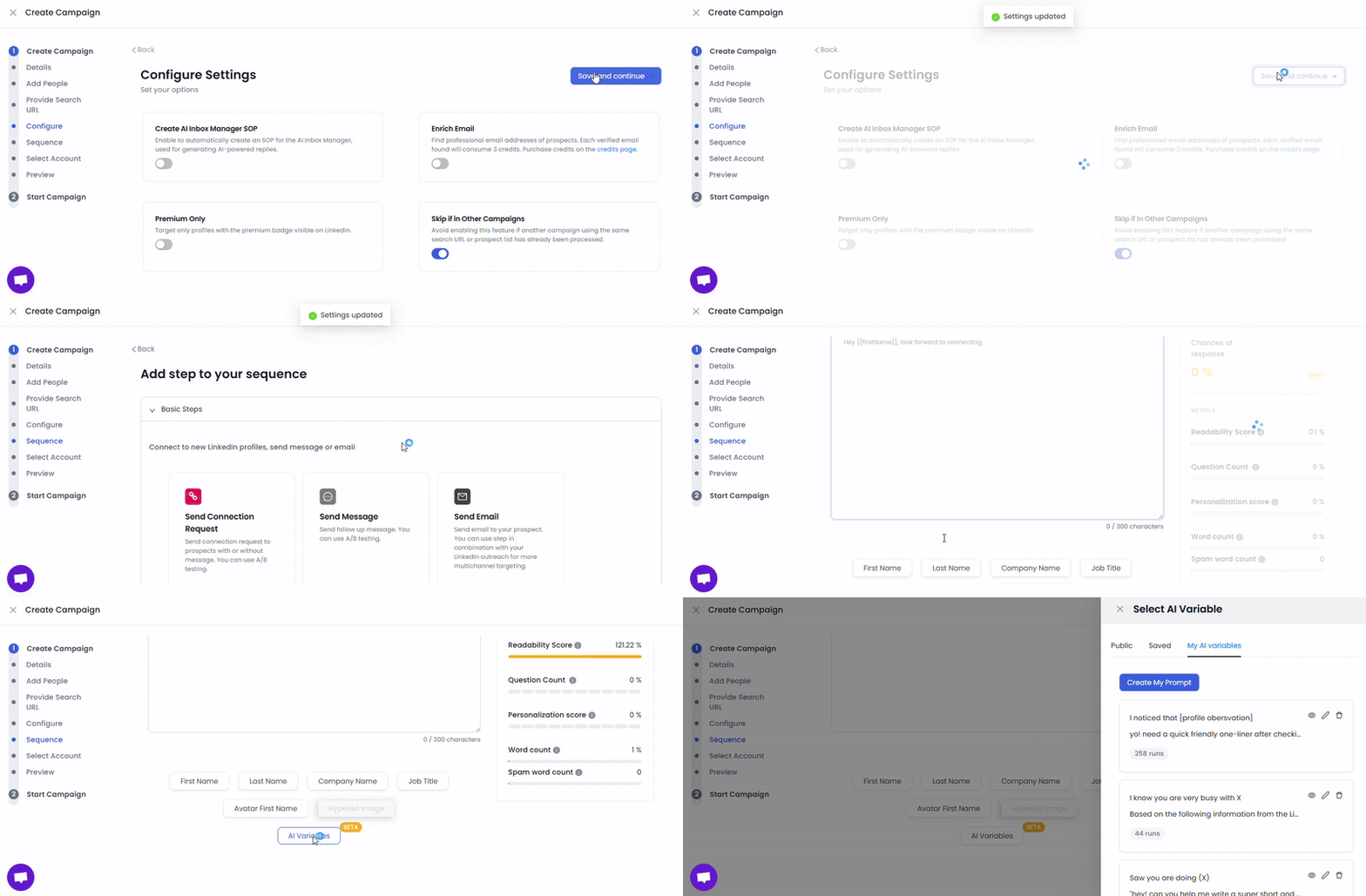
Step 5: Choose or Create AI Variable
- Explore:
**Public AI Variables: **Pre-made variables provided for you to choose and use
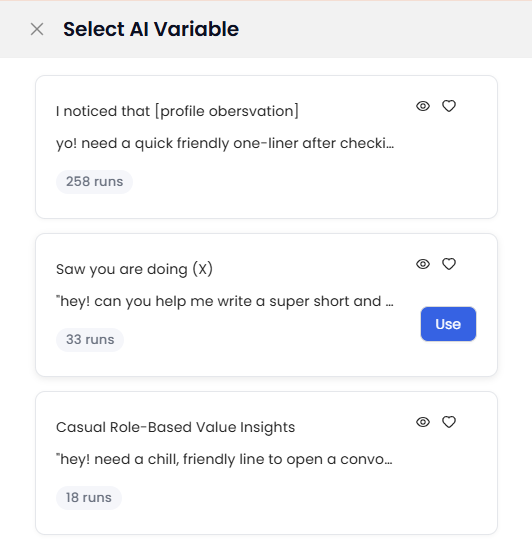
**Saved Variables: **Variables you’ve created or customized and saved for later use
**My AI Variables: **Your personal collection of AI variables, fully created and managed by you
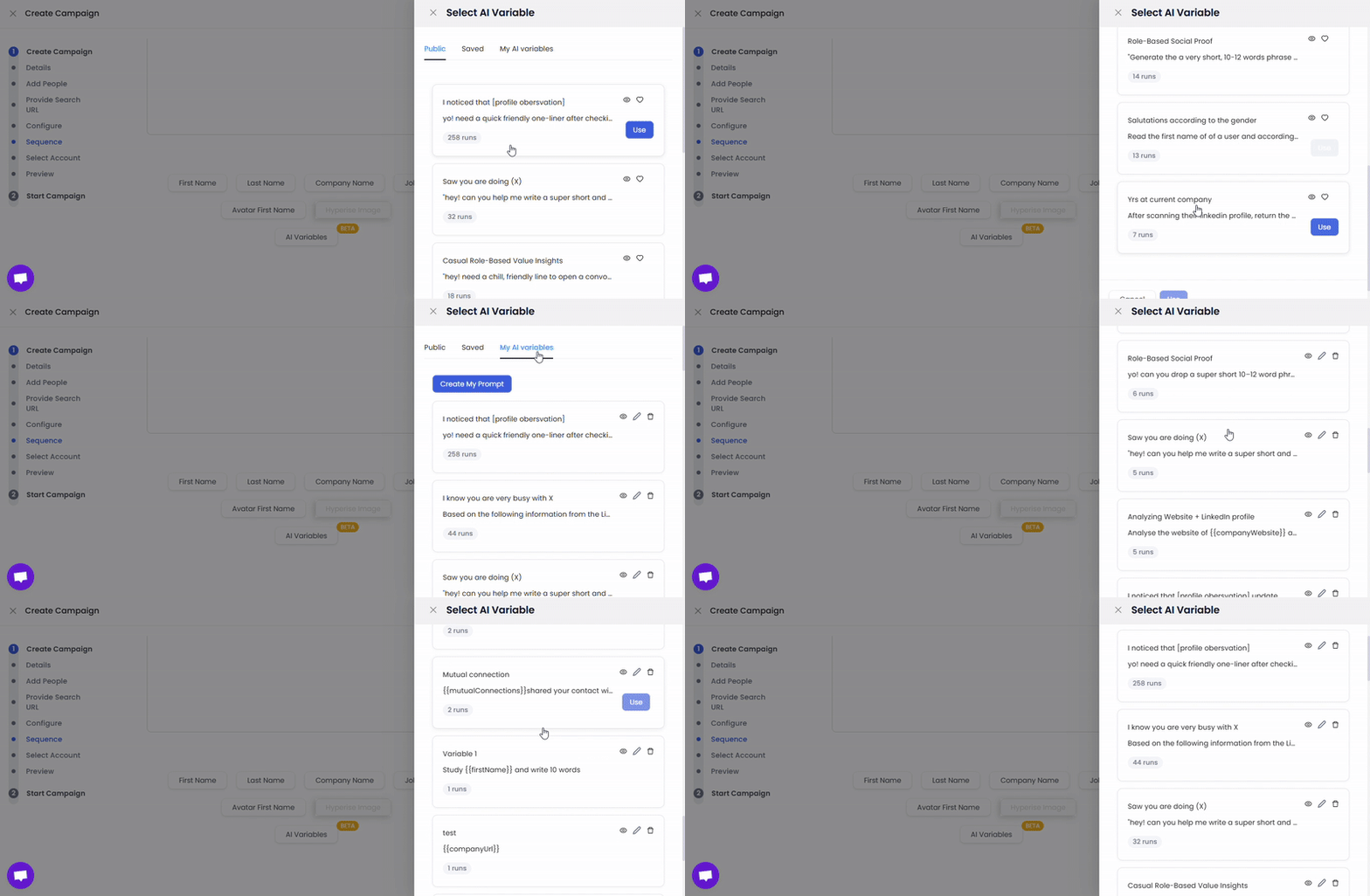
- Pick a relevant variable (e.g., “I know you’re busy with X”).Click*** “Use” ***on your chosen variable.
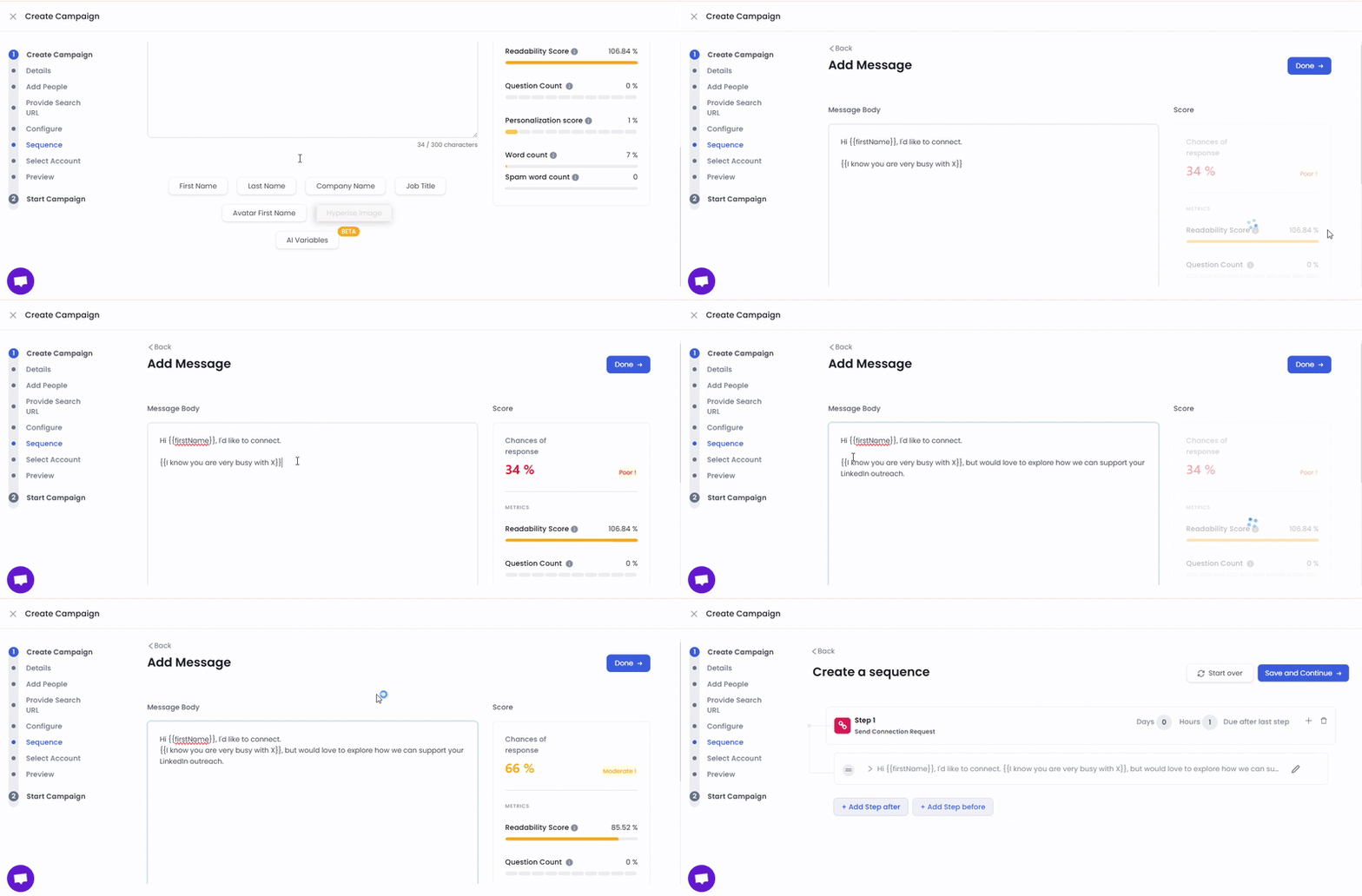
Step 6: Understand the Prompt Logic
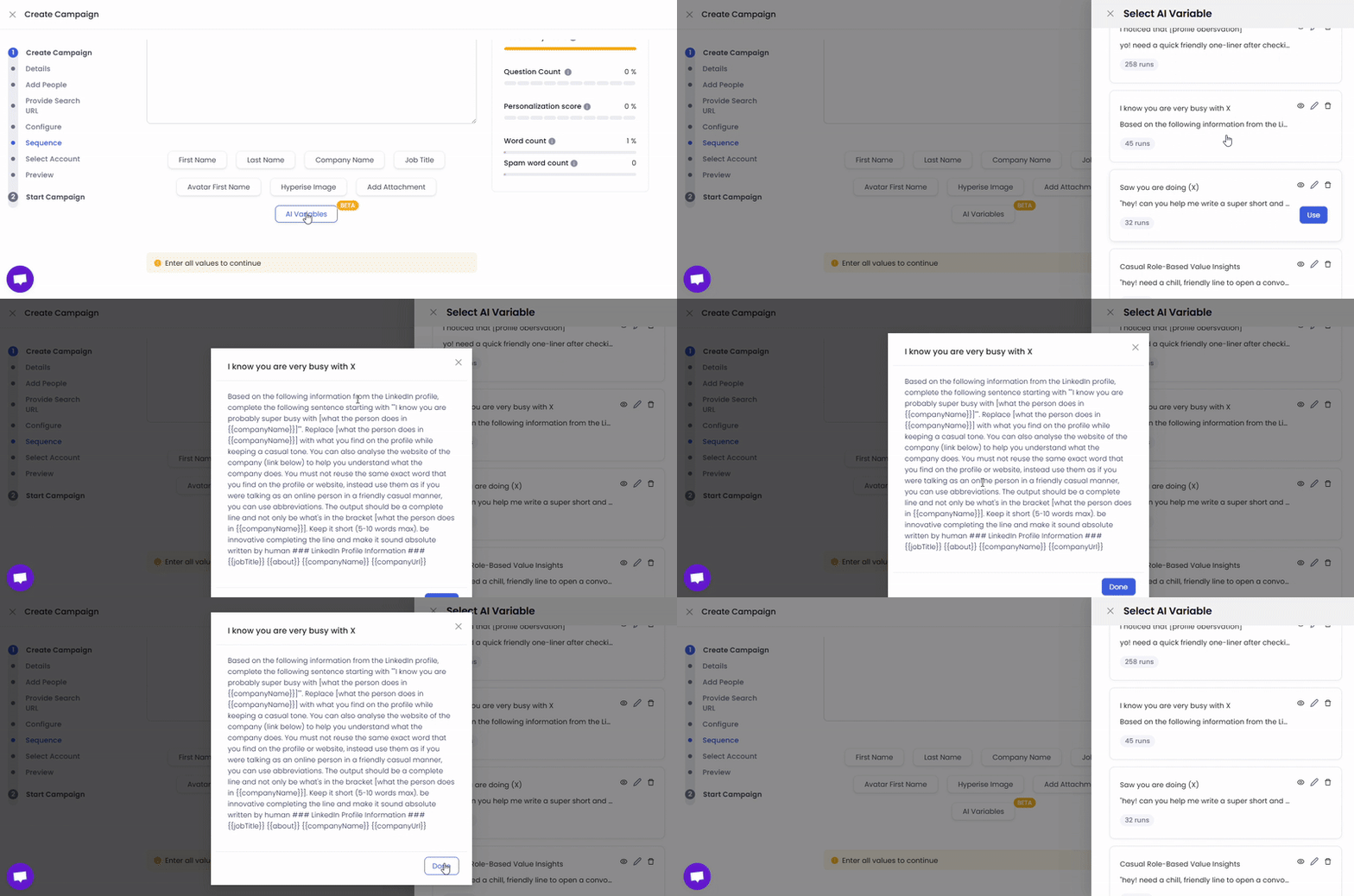
The AI prompt will look like this:
“Based on the following information from the LinkedIn profile, complete the following sentence: I know you're super busy with...”
The AI analyzes:
- LinkedIn headline
- Job title
- Summary
- Even the company website if available
It rewrites the sentence without copying profile text directly.
📌 Example Message Output: “Hi John, I’d like to connect. I know you’re super busy with sustainable project planning in the construction space, but would love to explore how we can support your LinkedIn outreach.”