If you want to build trust on LinkedIn without firing off a DM, start by showing up on their posts.
A simple comment gets you noticed and makes you familiar before you even reach out.
But here’s the catch: scrolling LinkedIn every day, reading posts, and coming up with replies takes a lot of time.
That’s where AI Commenting comes in.
What is AI Commenting?
Check out the full tutorial here: [See how AI Commenting works]
AI Commenting is a feature in Lead Finesse that helps you engage with prospects at scale.
Instead of you having to manually comment on each post, here’s what Lead Finesse does:
Analyzes your prospect’s latest post
Chooses the right angle based on the variable you set
Generates a natural comment in your tone
This way, you stay visible in front of your leads without spending hours glued to LinkedIn.
How to use AI Commenting
Step 1: Create a Campaign
Click Create Campaign.
Choose Create Campaign with LinkedIn (as an example).
Select the Advanced user flow option.
Step 2: Add Contacts
Give your campaign a name and hit Save.
Upload your contact list (from Sales Navigator, LinkedIn search, or a CSV).
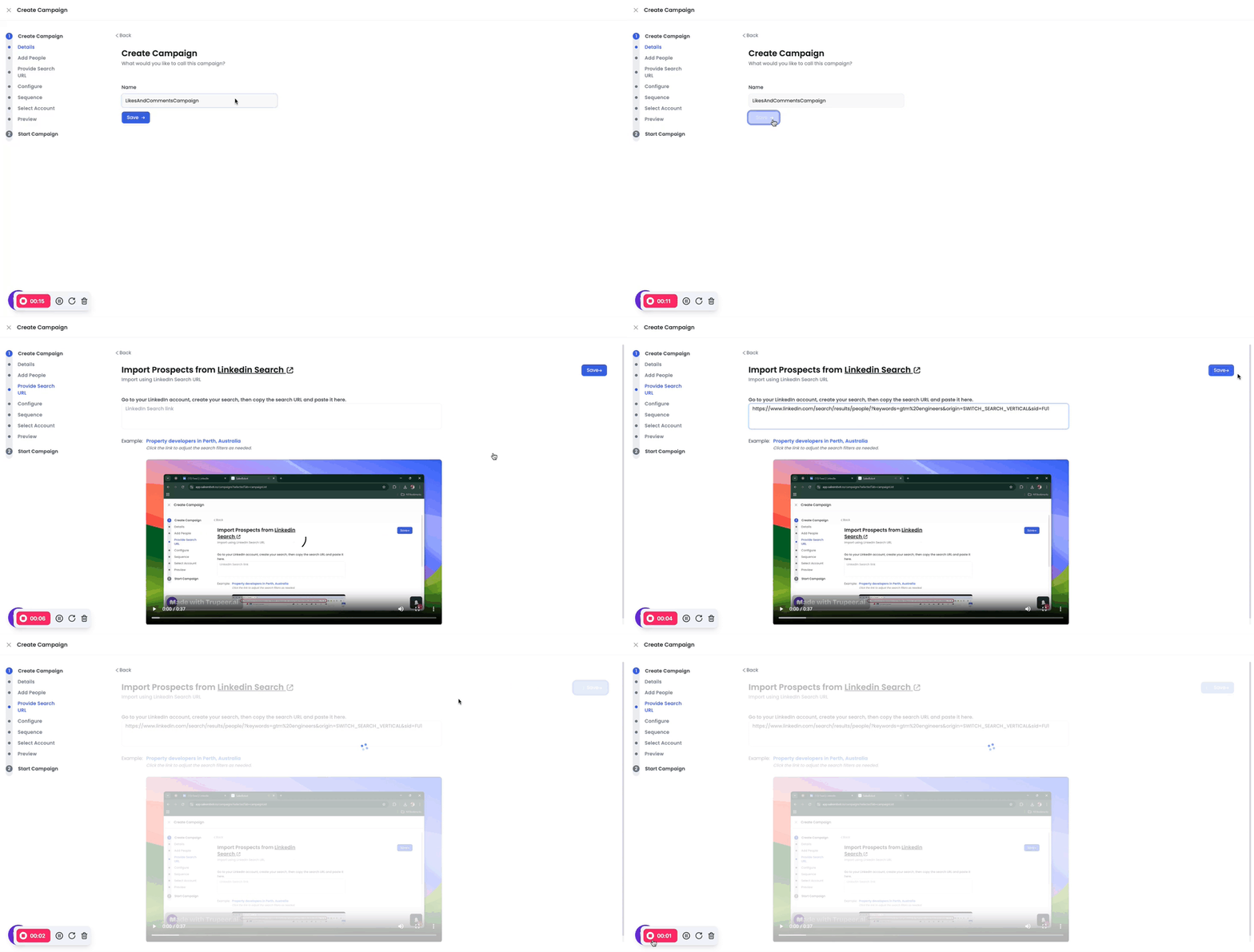
Click Save and Continue.
Set up the required campaign settings, then select From Scratch to begin building your sequence.
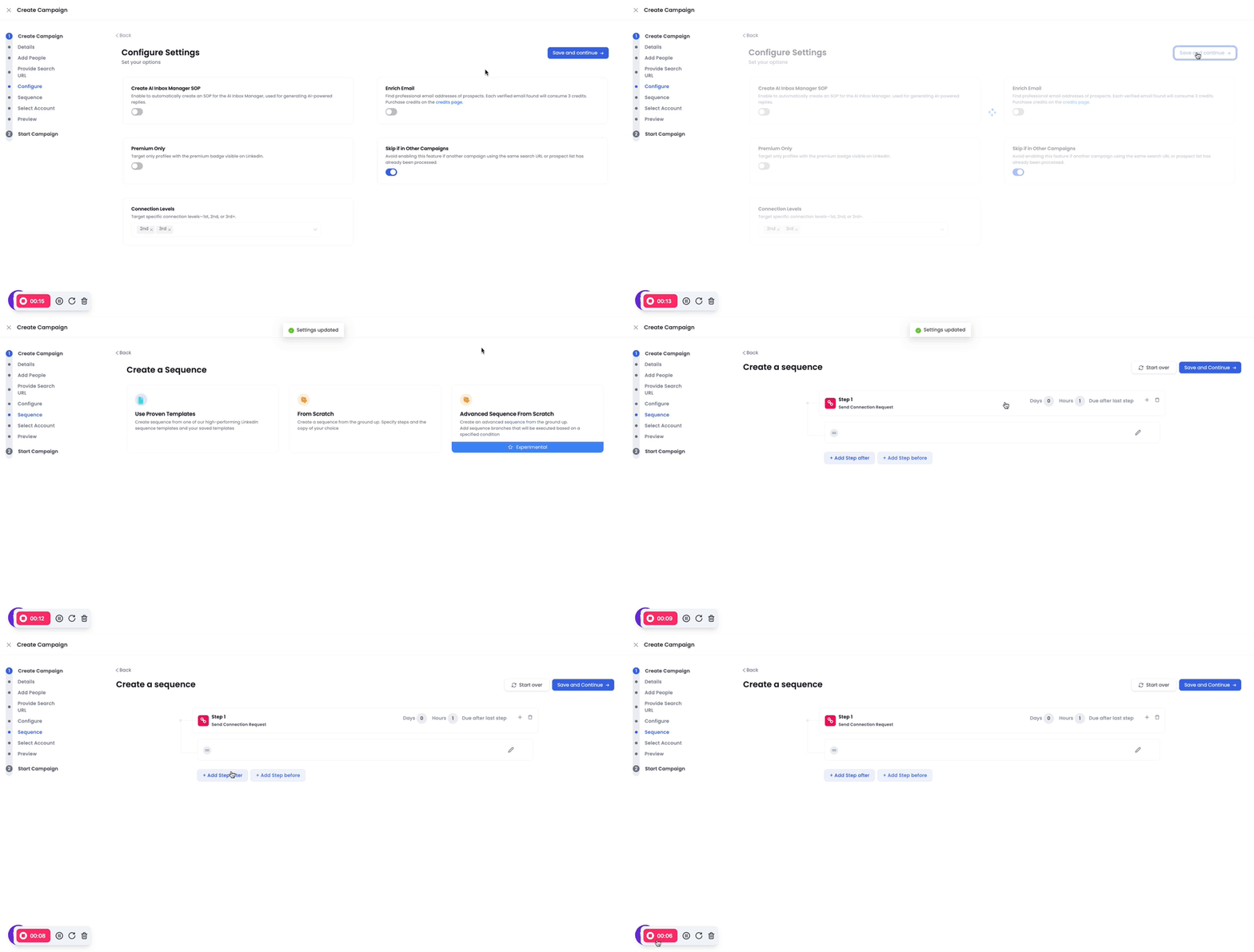
Step 3: Build Your Sequence
Start with a Profile View as the first step.
This helps create awareness without being too direct.
Tip: If the sequence starts with a Connection Request, remove it and add Profile View instead. This softer approach avoids rejection and works well for engagement-driven campaigns, as it builds familiarity before you reach out directly.
Next, add Like and Comment steps after the profile view to create a natural flow of engagement.
Don’t forget to add short delays between each step.
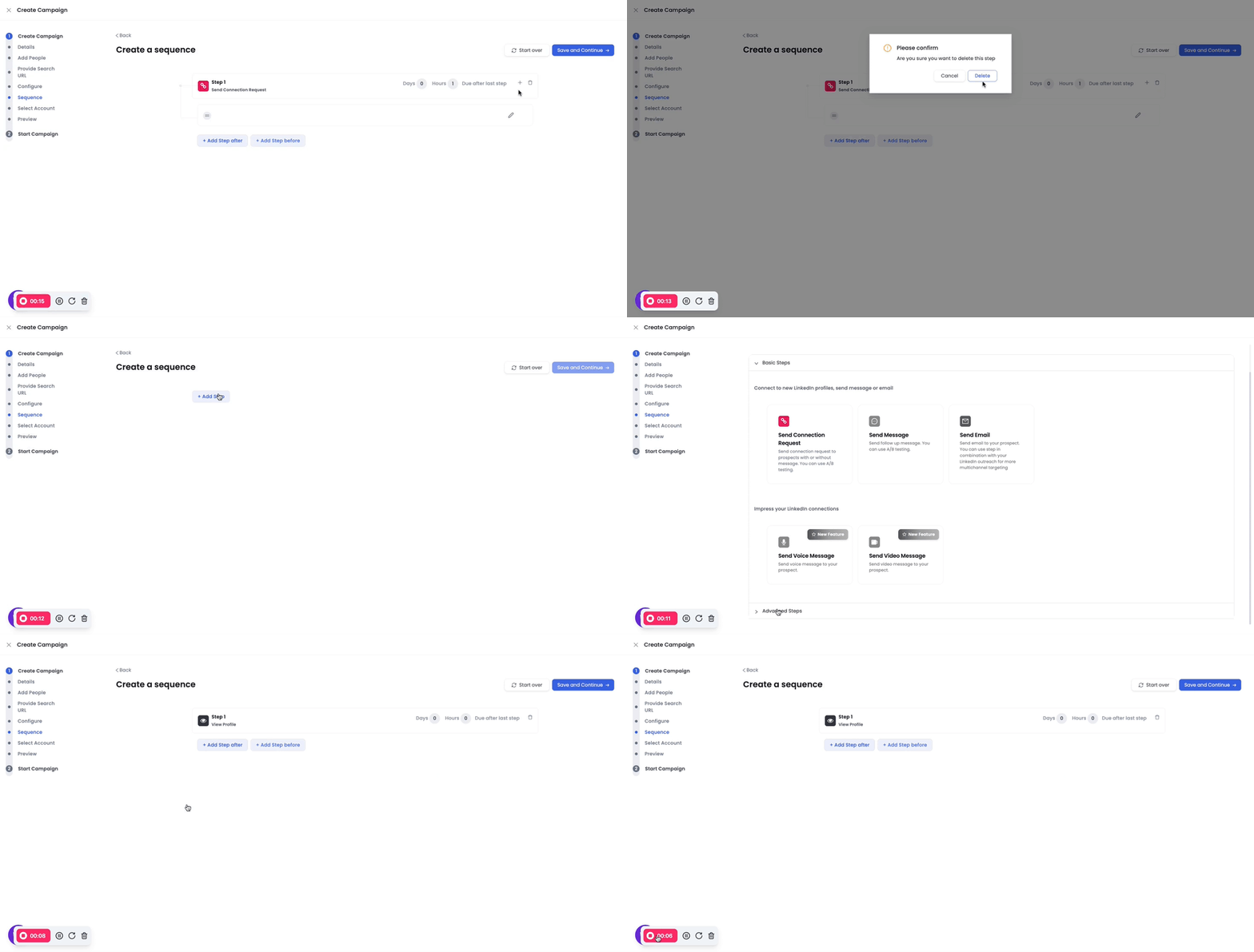
Step 4: Add Likes and Comments
For Comments:
Insert a comment step into your sequence (refer to the video for guidance)
Configure the AI prompts by:
Giving clear instructions (e.g., “leave a funny comment”).
Providing a few examples in your brand’s tone.
Adding context about your lead or industry to make comments relevant.
- Example AI Prompt Setup:
Prompt: “Write a funny, engaging comment that connects to the {{current post}}”
Examples:
“Great insights! This reminds me of {{relevant experience}}”
“Love this perspective - definitely saving it for later!”
Step 5: Add a Connection Request
Once you’ve engaged with likes and comments, add a Connection Request step.
By this point, prospects are already familiar with you, making them more likely to accept your request.
**Notes: **
- For a detailed guide on setting up a Likes and Comments campaign, check out this article.
- Remember to space out your engagement steps with short delays to keep your activity natural.
- Use the AI prompts to maintain your brand’s tone and relevance for each prospect.