Lead Finesse's likes and comments campaigns allow you to automatically engage with your prospects' social media posts using our smart comments prompts. This feature helps you stay top-of-mind with potential leads through authentic, personalized interactions.
How It Actually Works
Comments Campaigns
When you set up a comments campaign, Lead Finesse:
- Creates AI-generated comments (does not just flag opportunities)
- Applies your custom prompts to each comment for personalization
- Generates unique comments for each person/post based on your instructions
Likes Campaigns
- Automatically likes posts from people in your campaign
- Can be combined with comments for maximum engagement
- Helps increase your visibility in prospects' networks
Setting Up a Likes and Comments Campaign
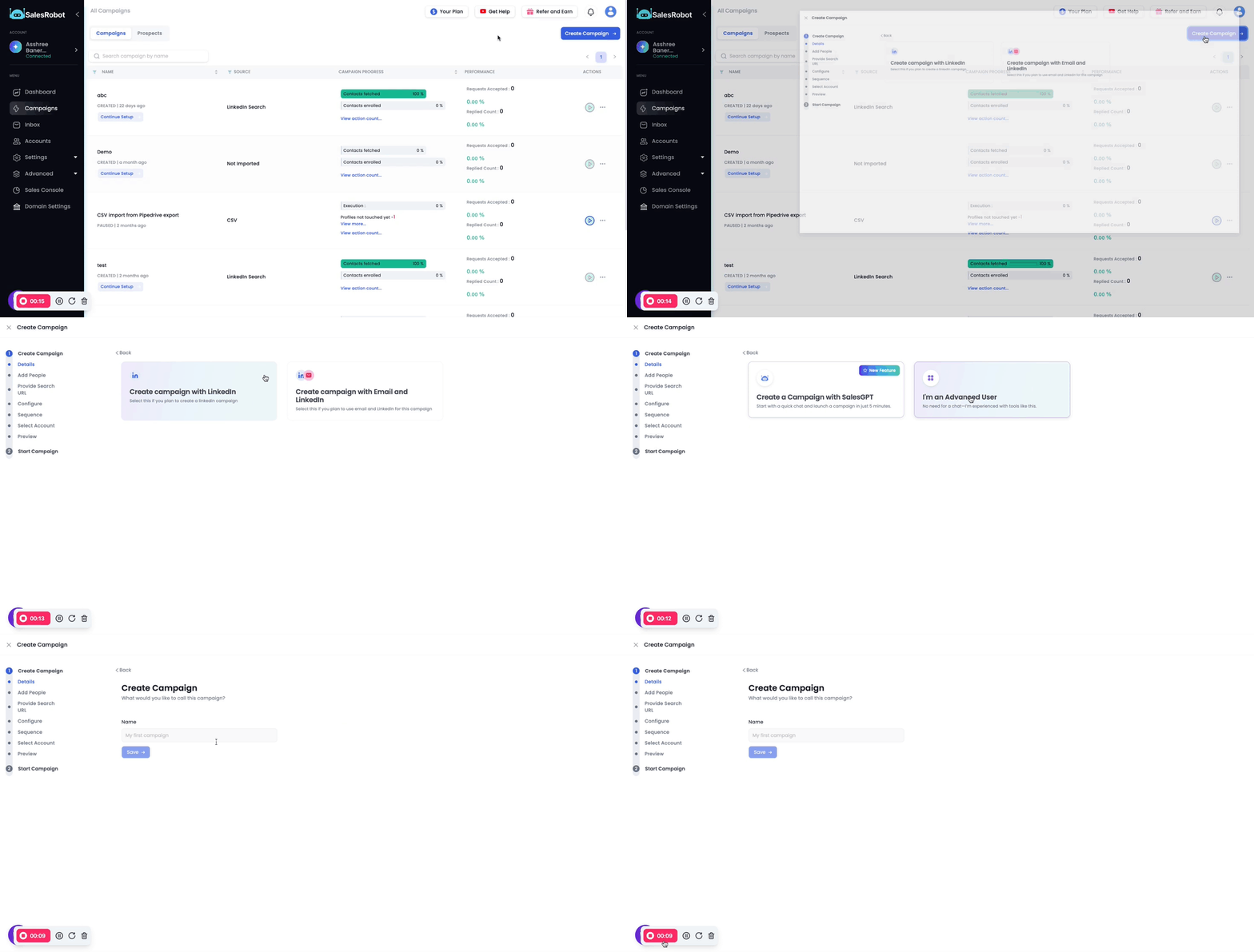
Step 1: Create Campaign
- Click 'Create Campaign'
- Select **'Create Campaign with LinkedIn' for **example
- Choose Advanced user flow
Step 2: Add Contacts
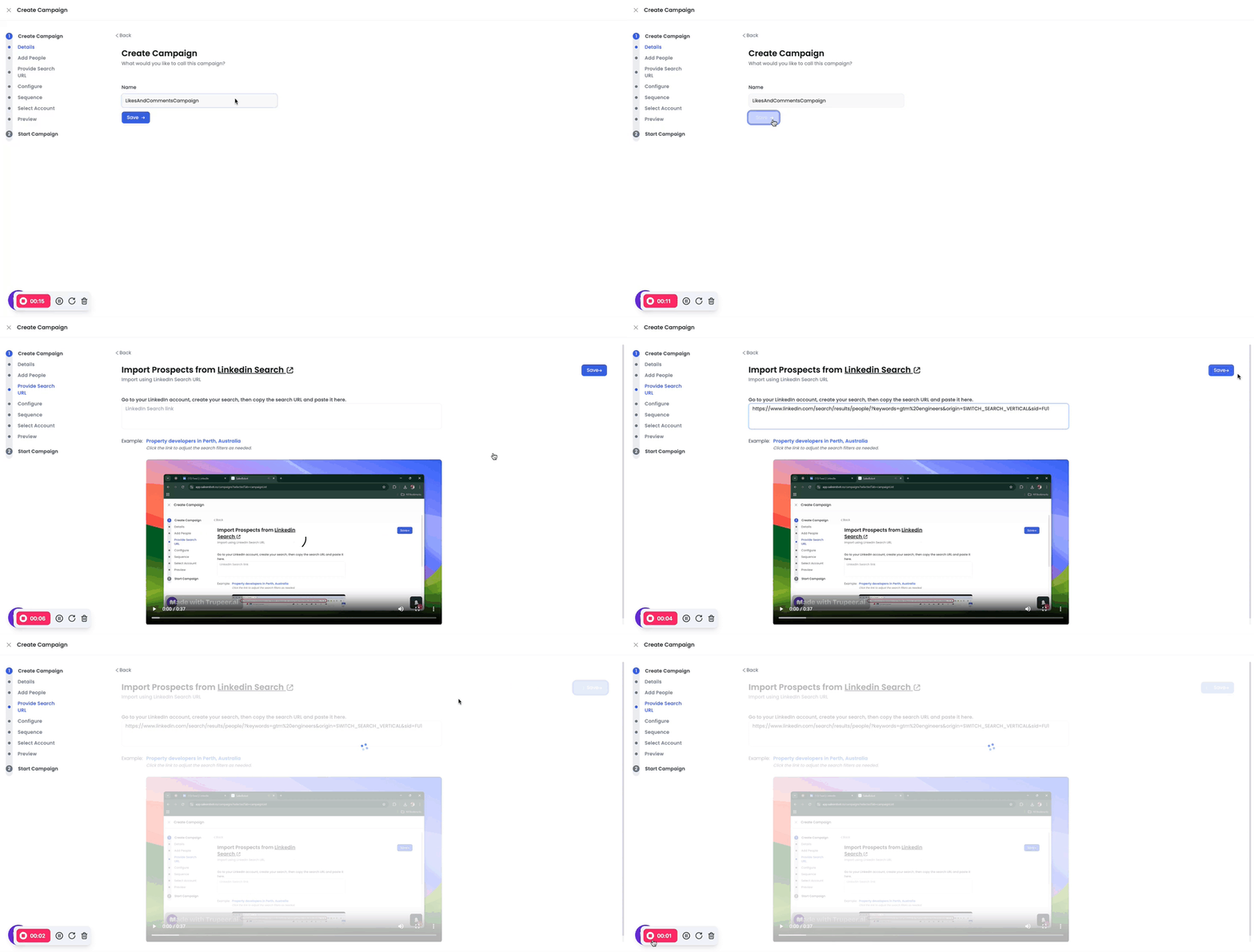
- Name your campaign
- Hit Save
- Add your contact list (Sales Navigator, LinkedIn search, or CSV)
- Click 'Save and Continue'
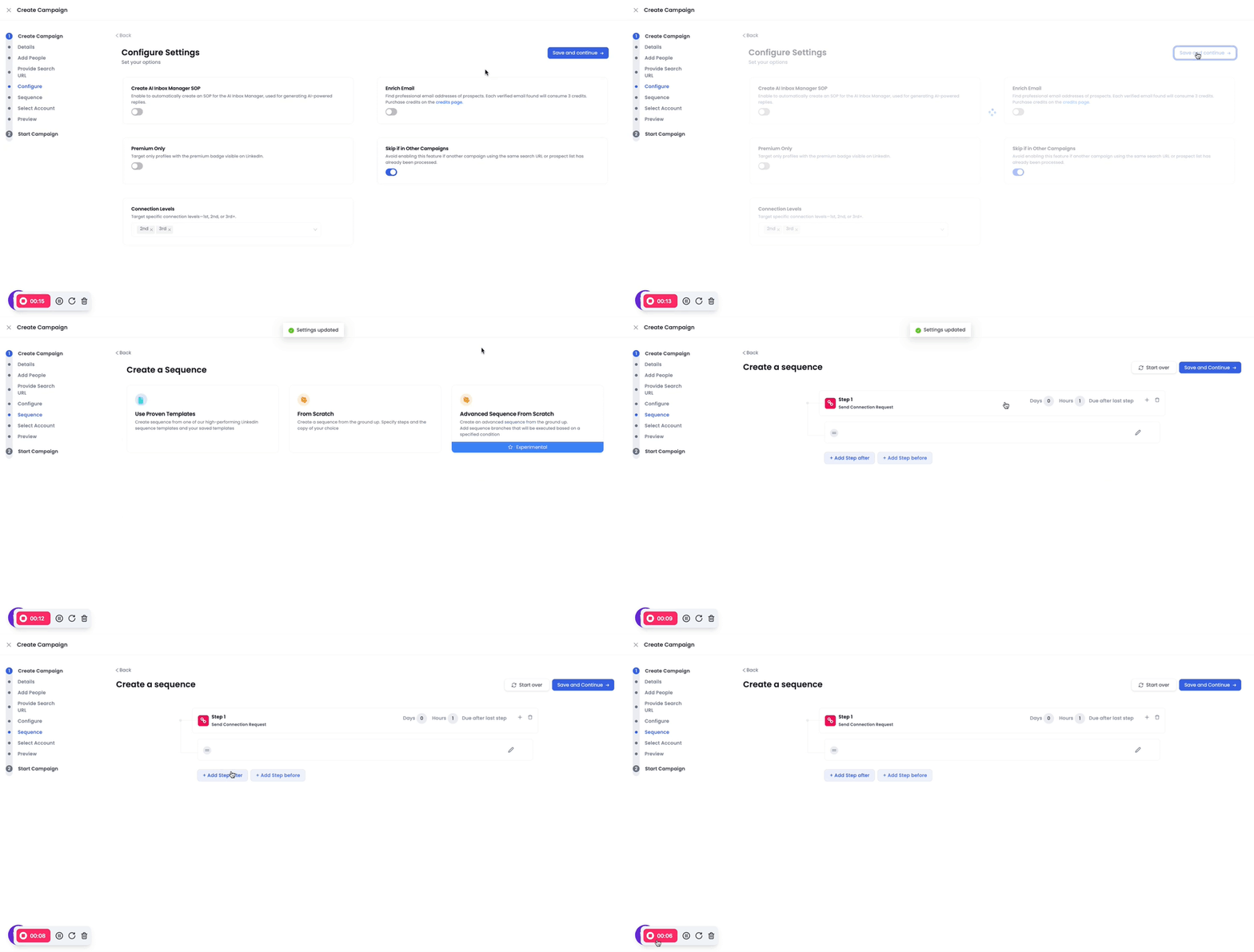
Configure required settings and Select “From Scratch” to start building your sequence
Step 3: Build Your Sequence
- Start with Profile View as Step 1 (this creates initial awareness without being too direct)
Note: If you see a Connection Request as Step 1, delete it and add Profile View instead - profile views are less intrusive and avoid potential connection rejection. This soft approach is ideal for engagement-focused campaigns where you want to build familiarity before making any direct requests
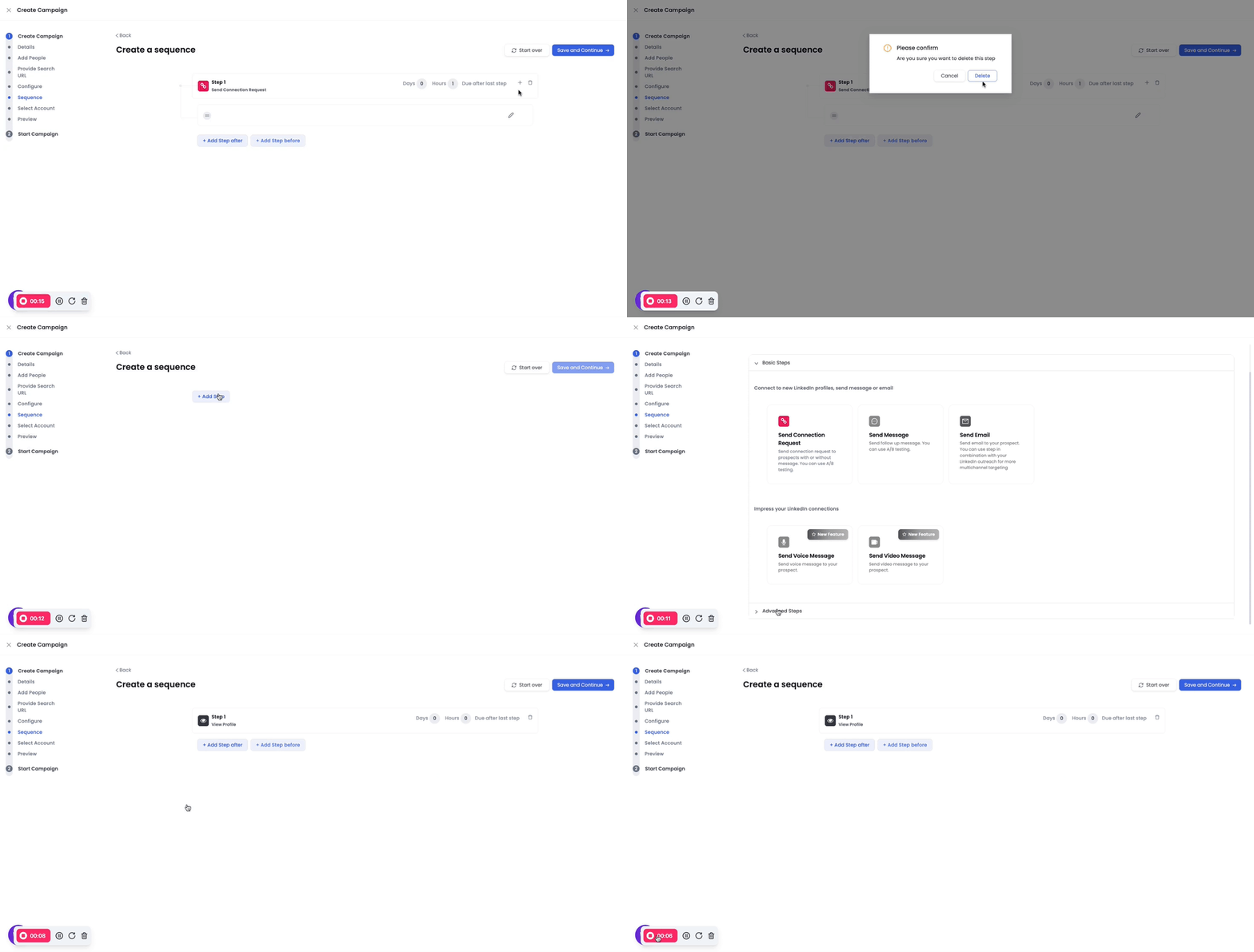
- Add Like and Comment steps after profile view (following builds natural engagement progression)
- Add timing delays between steps
Step 4: Add Likes and Comments Steps
For Comments:
- Add a step in your sequence for commenting [check the video for reference.
${vimeo}Add Like and Comment step to your campaign sequence
- Configure AI Prompts:
- Provide custom instructions for the AI (e.g., "leave a funny comment")
- Add specific examples to align with your brand's tone
- Include context about your lead or industry for relevance
Example AI Prompt Configuration:
Prompt: "Leave a funny, engaging comment that relates to the {{current post}}"
Examples:
- "Great insights! This reminds me of {{relevant experience}}"
- "Love this perspective - definitely saving for later!"
Step 5: Add Connection Request Step
- Add a Connection Request step after your engagement activities (likes/comments)
- This builds on the familiarity created through your previous interactions
- Prospects are more likely to accept connections from people who have already engaged with their content