What is the Prospect Pool
The Prospect Pool is a central database where all your scraped prospects are stored. It helps you:
- Avoid duplicate outreach
- Reuse leads across campaigns
- Manage prospects before launching outreach
How to add prospects to the Prospect Pool
Step 1: Build a Search List
- Go to LinkedIn/Sales Navigator
- Use filters like company size, industry, location, job title
- Keep results under 2500 profiles
- Copy the search URL
Step 2: Open Prospect Pool
- Log in to Lead Finesse
- Go to Advance
- Click Prospect Pool
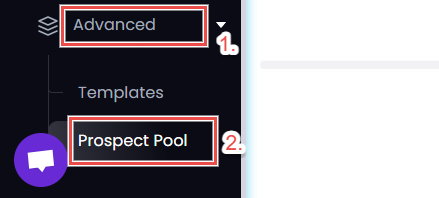
Step 3: Add prospects
- Click Prospect Actions
- Select Add Prospects
- Choose any one of these options
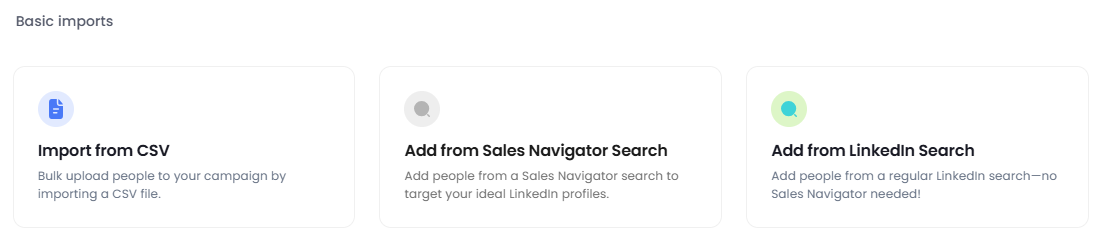 ](https://storage.crisp.chat/users/helpdesk/website/-/f/4/f/e/f4fedfcdcc3a3800/image_1q9ja4c.png)
 - Paste the search URL
- Select the connected Sales Navigator account
- Add a tag to identify this list
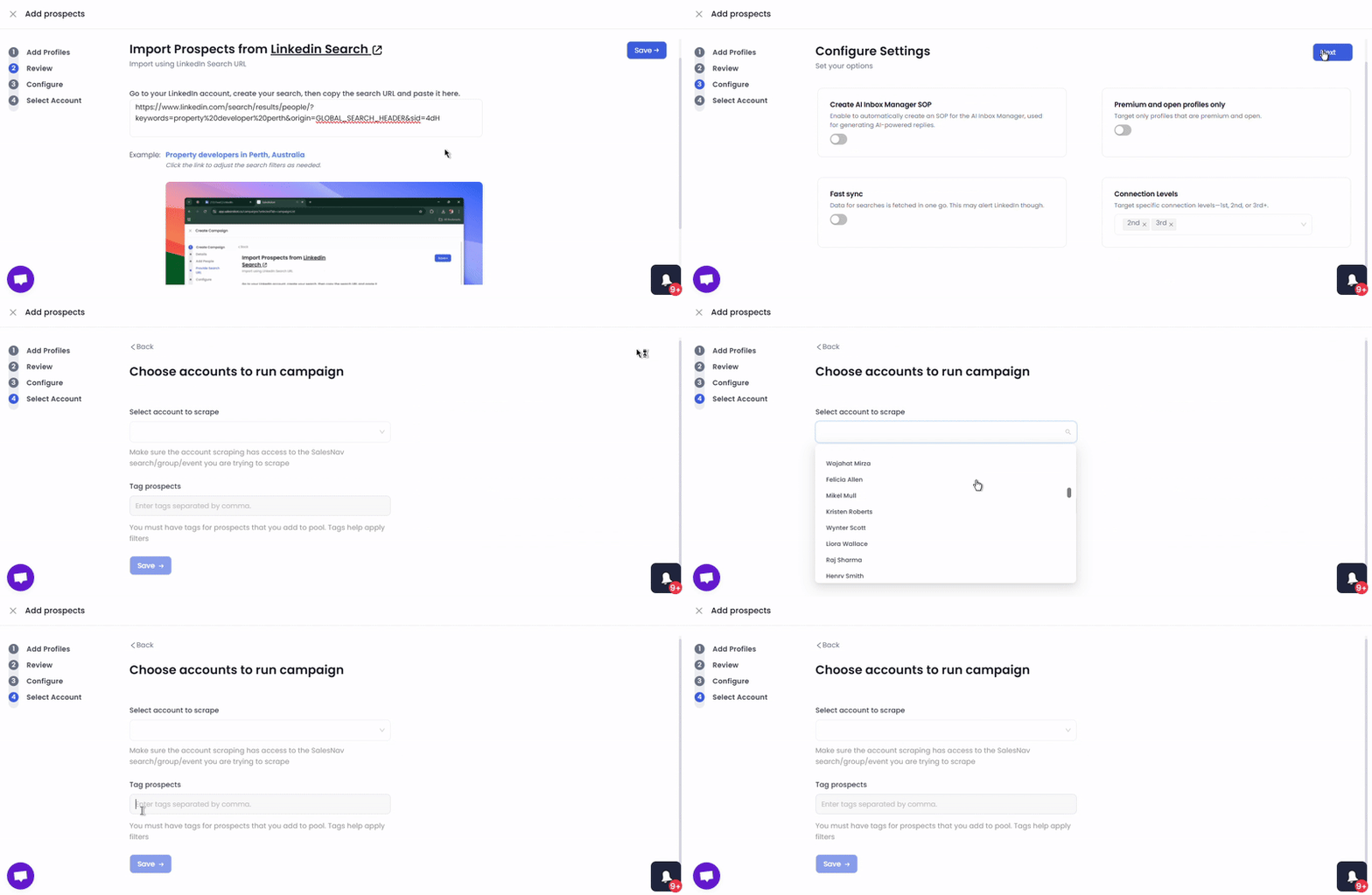

Step 4: Start scraping
Lead Finesse will:
- Scrape profiles from the search
- Collect name, title, company, LinkedIn URL
- Store them inside Prospect Pool under your tag Scraping usually takes a few hours depending on list size pasted.
Create campaigns from Prospect Pool
You can launch campaigns directly from Prospect Pool.
Here's how:
On the Prospect Pool page, filter prospects using tags
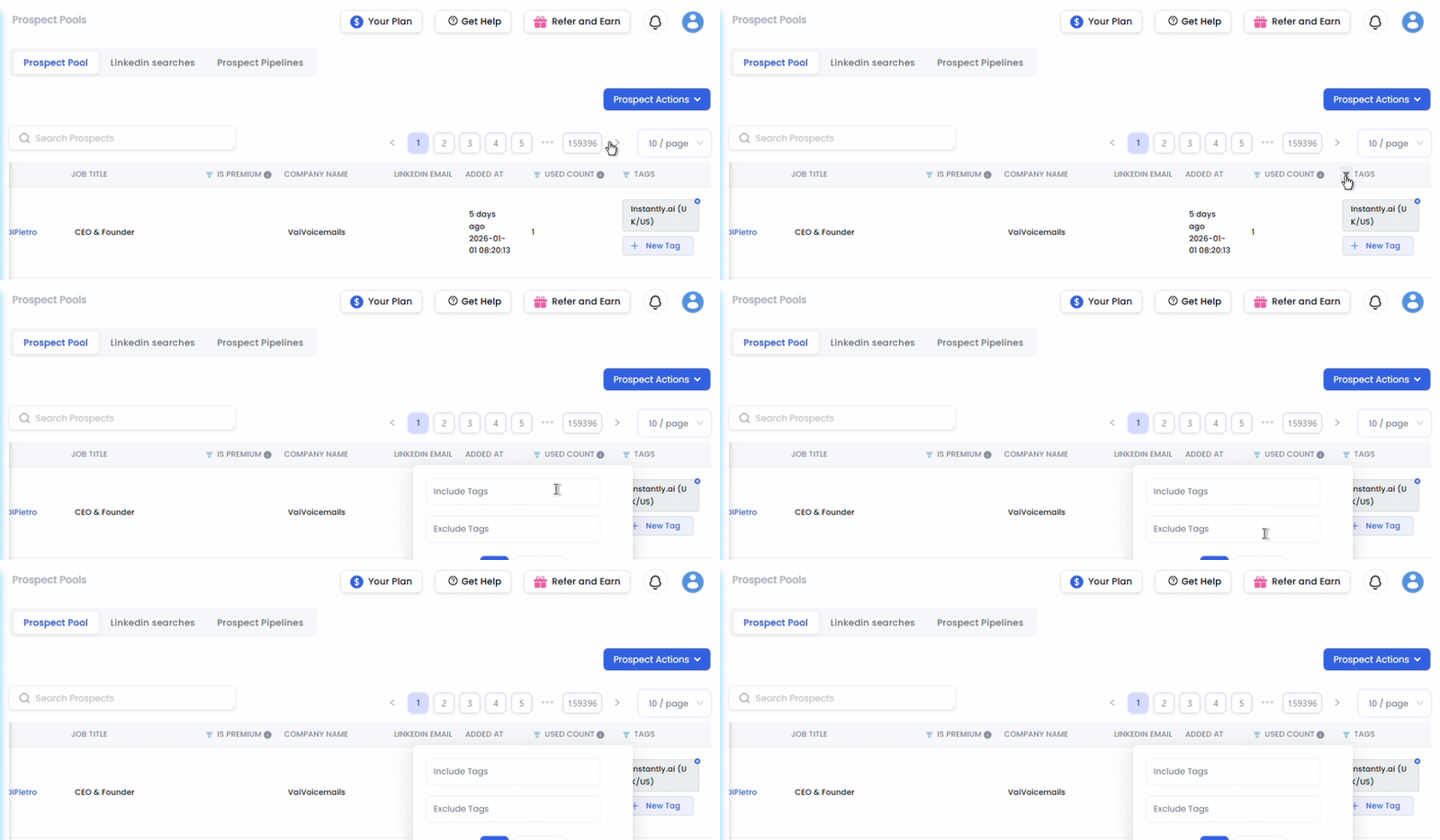
Click Prospect Actions
Select Create Campaign
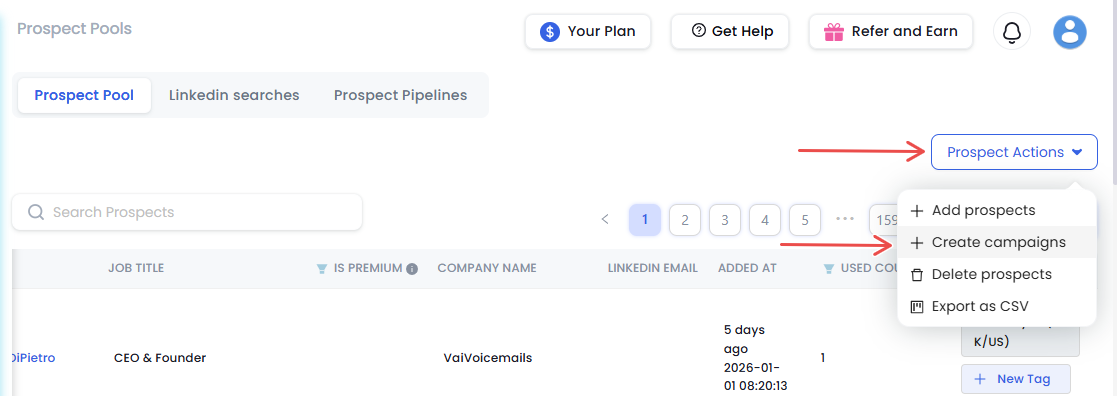
- Choose the prospects for which you want to create the campaign
- Select campaign type: **LinkedIn **OR LinkedIn + Email
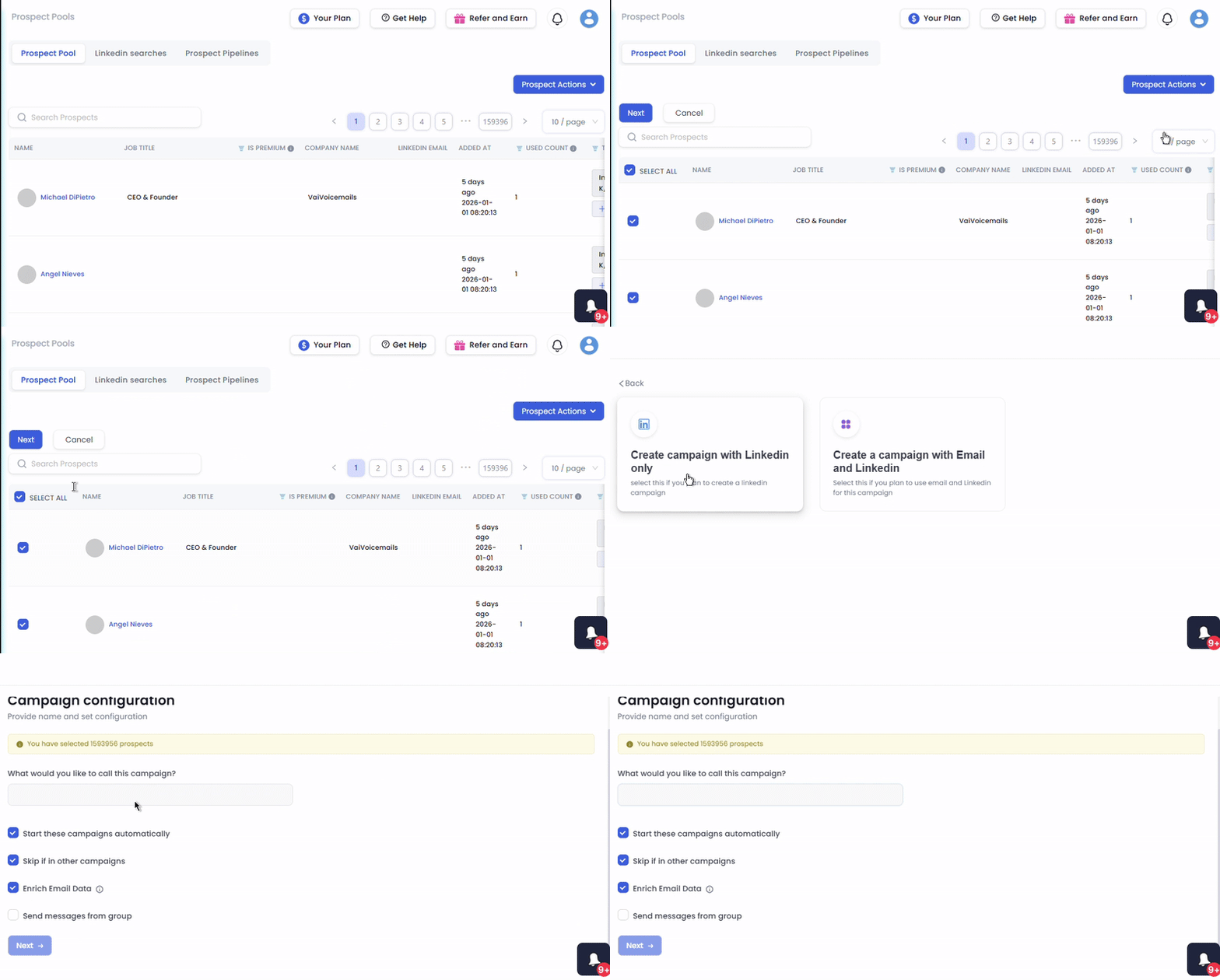
- Configure the campaign and select template.
- And finally, choose the account from which the campaign will execute, and done!
Tip:
- Use tags to split large lists cleanly
Delete prospects from Prospect Pool
Steps:
- Open Prospect Pool
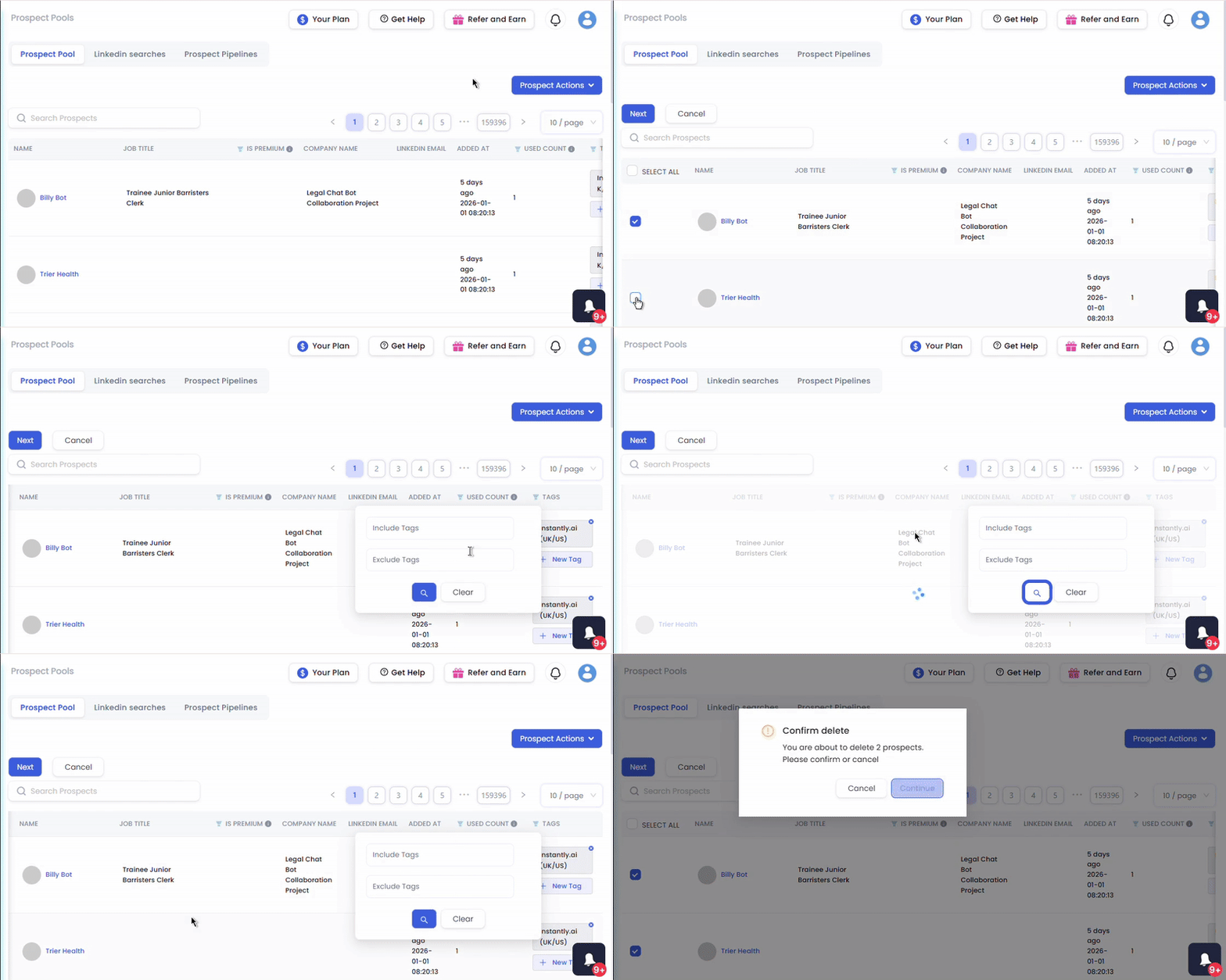
- Filter or search for the prospects
- Select the prospects
- Click Prospect Actions
- Choose Delete Prospect
Export prospects as CSV
You can also export leads from the Prospect Pool.
Steps:
- Open Prospect Pool
- Filter prospects using tags or filters
- Select the prospects
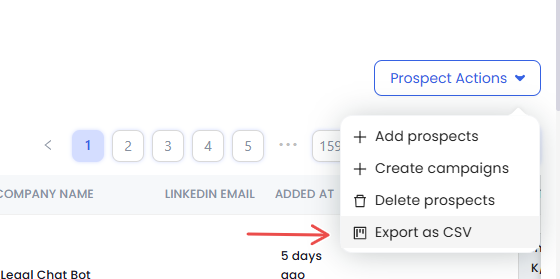
- Click Prospect Actions
- Choose Export as CSV
Important limits and notes:
- Maximum 2500 prospects per Sales Navigator search
- Use multiple searches if your list is larger