To connect Lead Finesse to your CRM (and other applications), you'll need to use Webhooks. In simple terms, Webhooks are a way to send data from one application to another.
In this case, you'll be sending data from Lead Finesse to your CRM.
Here's how to do it:
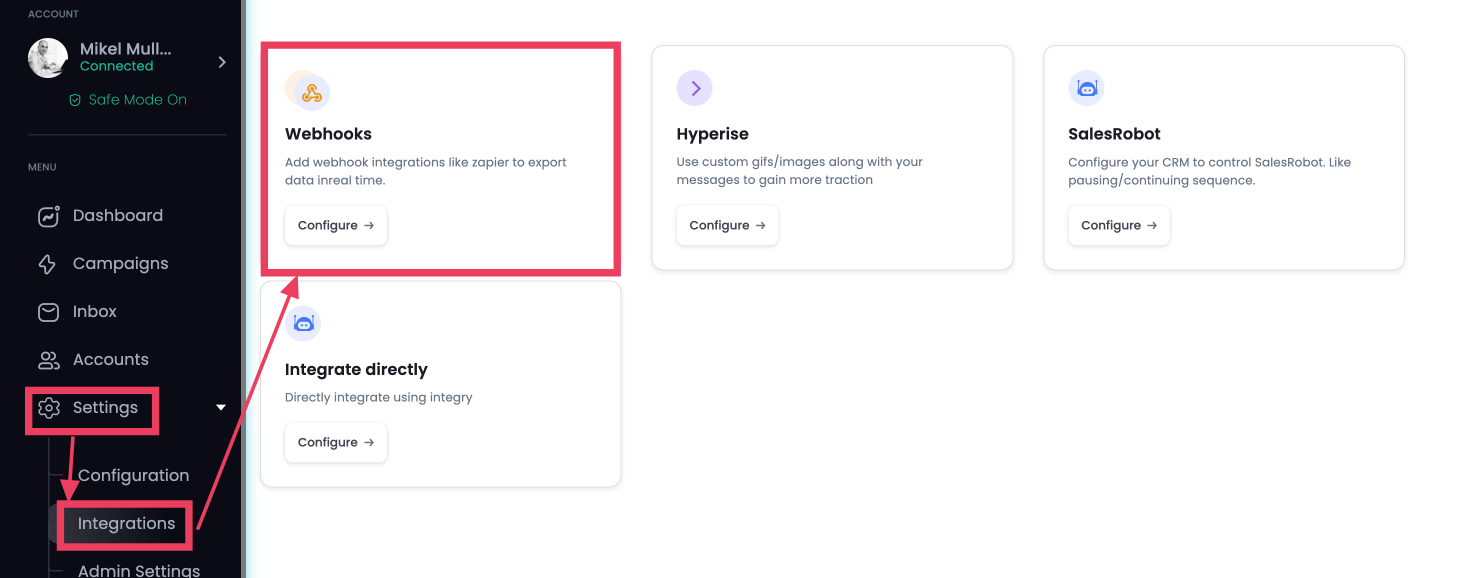
- Access the Lead Finesse Webhooks settings: Go to Settings -> Integrations -> Webhooks.
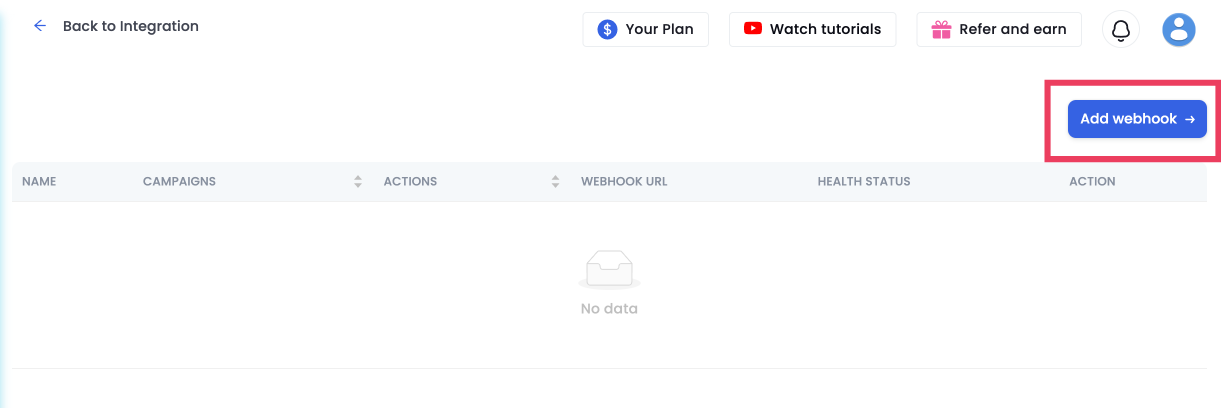
- Create a new webhook: Click on the Add webhook button.
- Choose a trigger: Select the event that should trigger the webhook, such as a new lead or a new message.
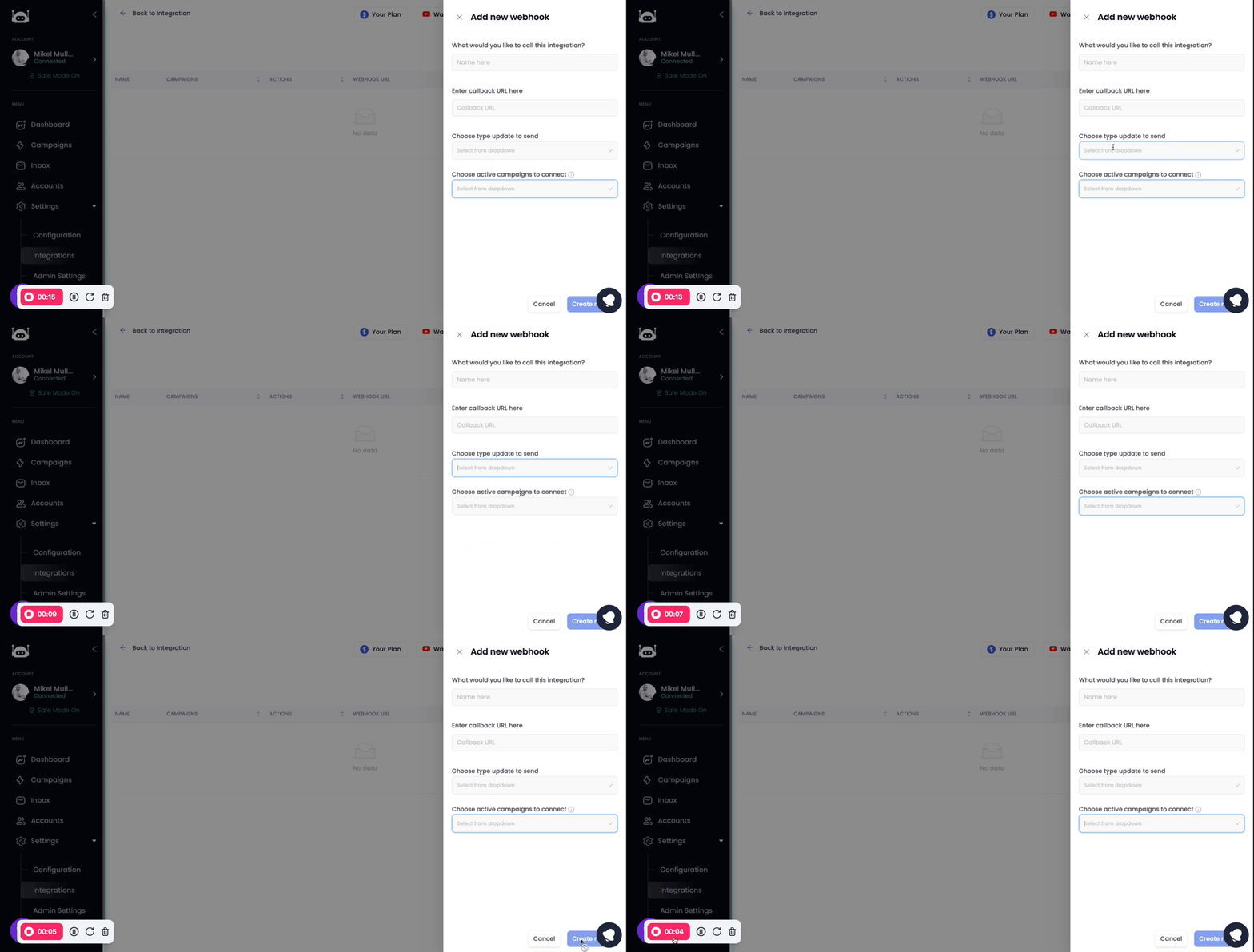
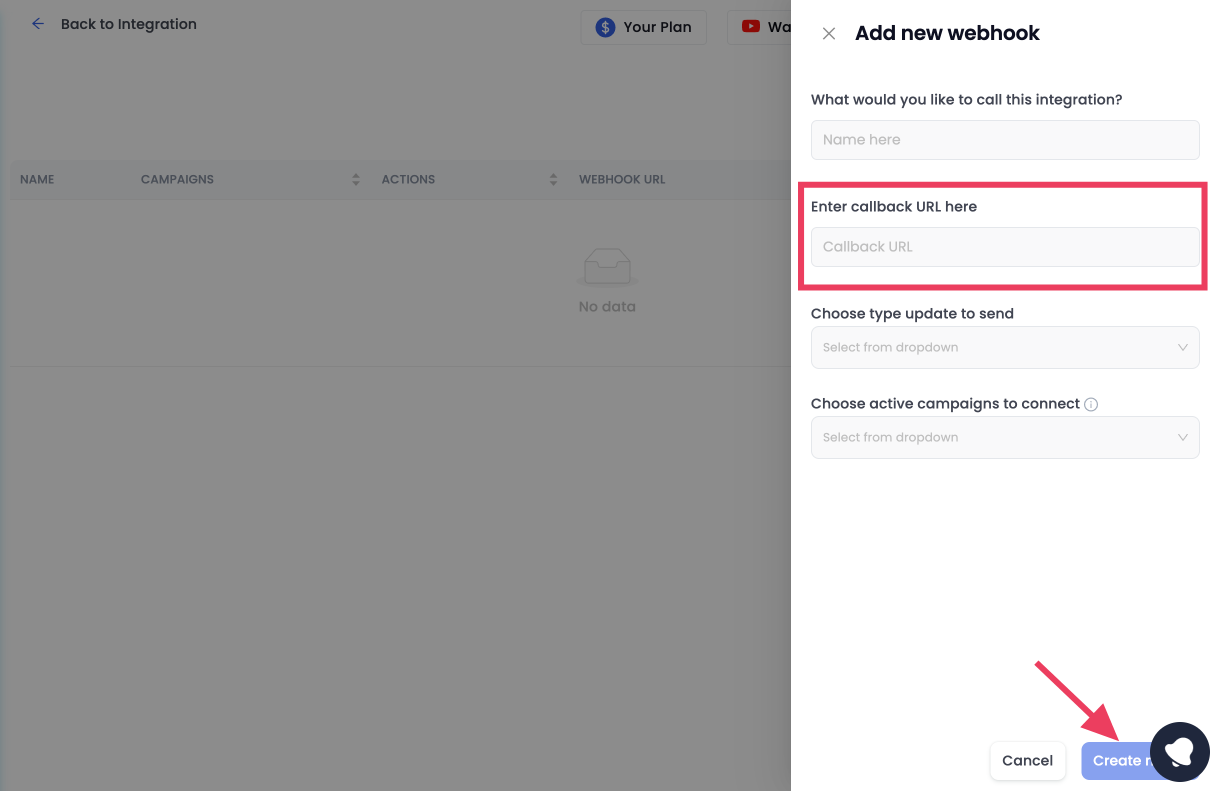
- Enter the callback URL:
Here is how you get your callback URL: We will be taking Zapier as an example here.
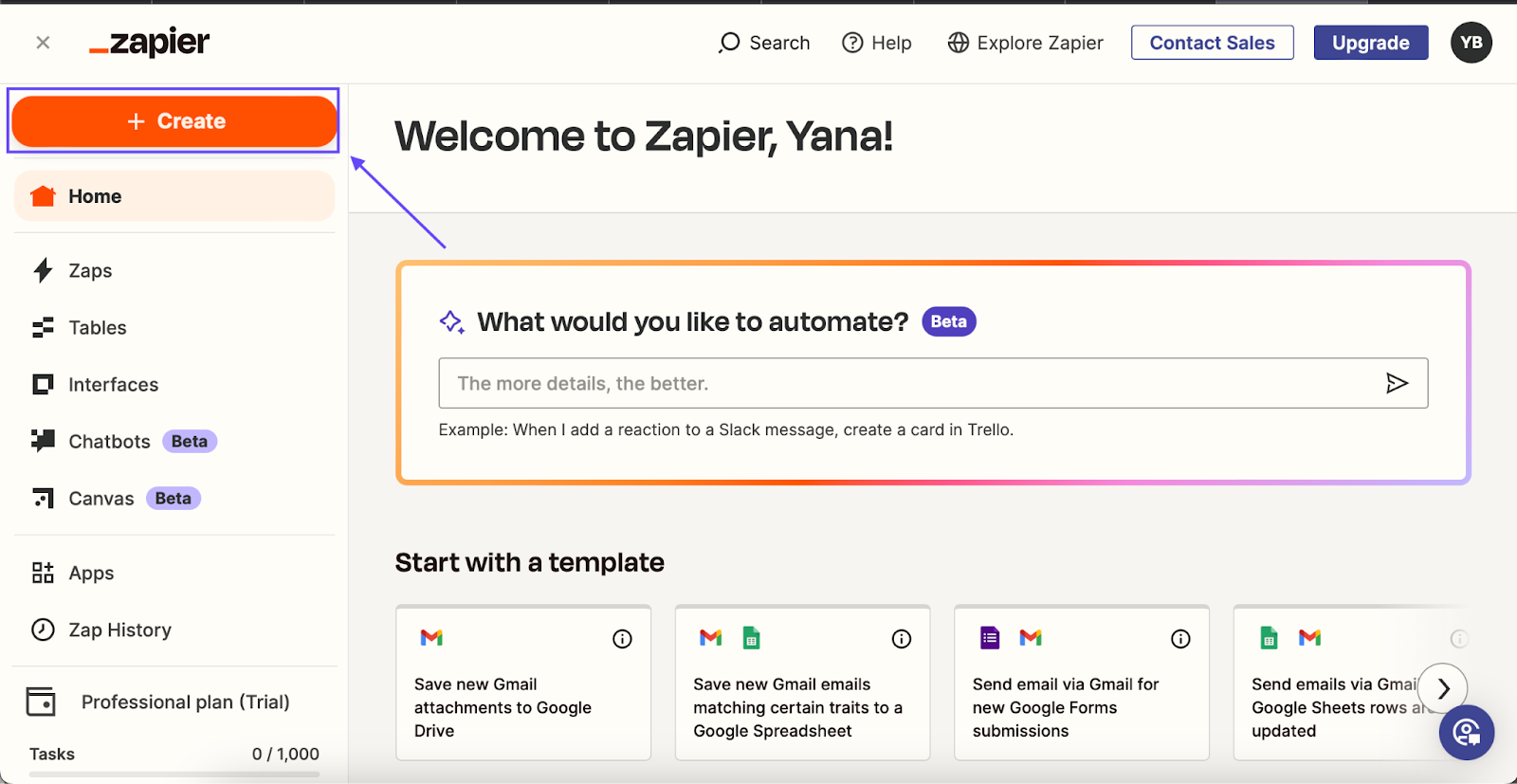
Visit Zapier and create a new Zap:
- Go to Zapier's site.
- Click 'Create' and select 'Zaps' on the Dashboard.
 5. Set Up the First Action:
For your first action, choose 'Webhook by Zapier'. In the webhook event, select 'Catch Hook.' This setup allows Zapier to receive data from other apps.
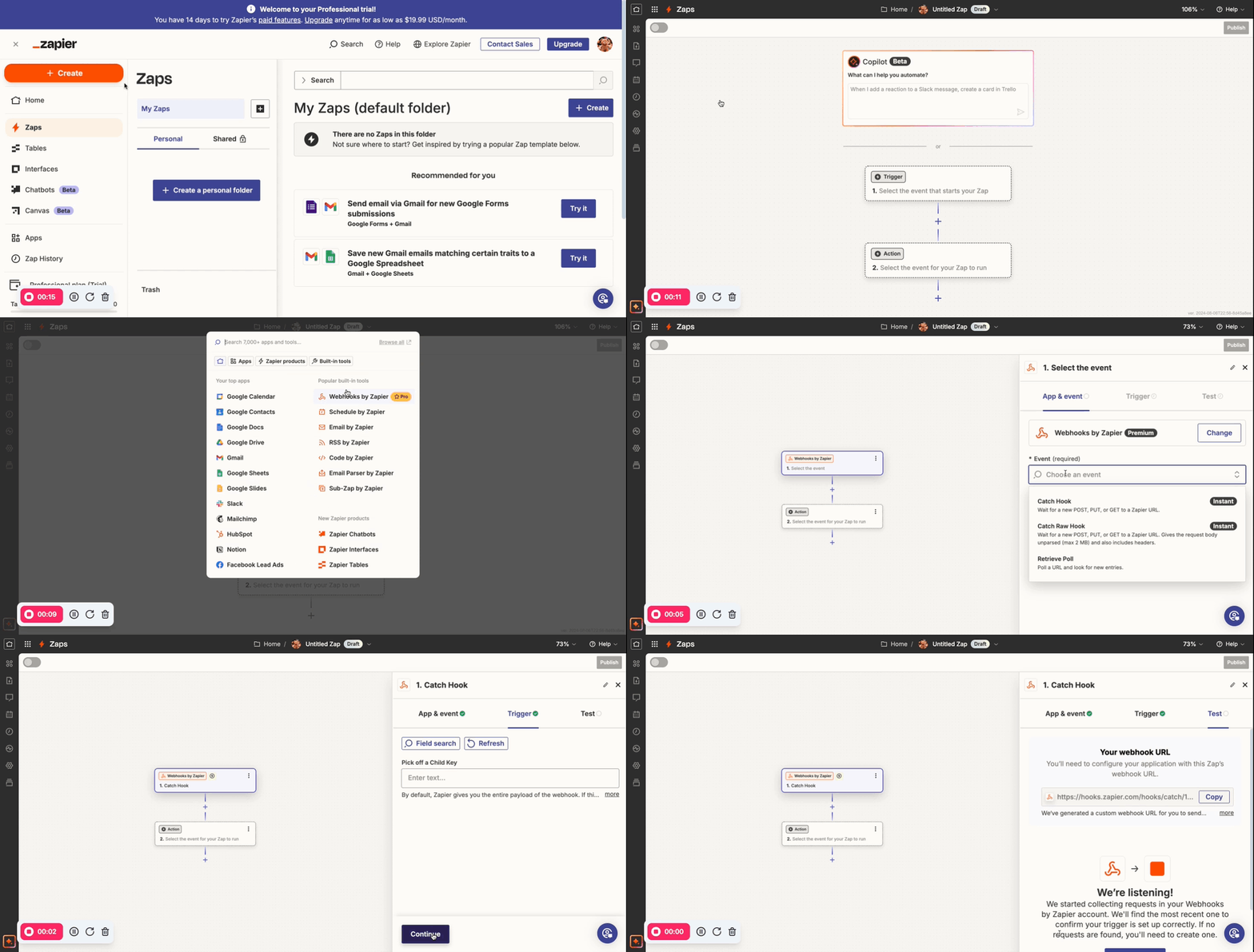 6. Copy the Webhook URL:
Go to the 'Test' tab and **copy the URL **shown.
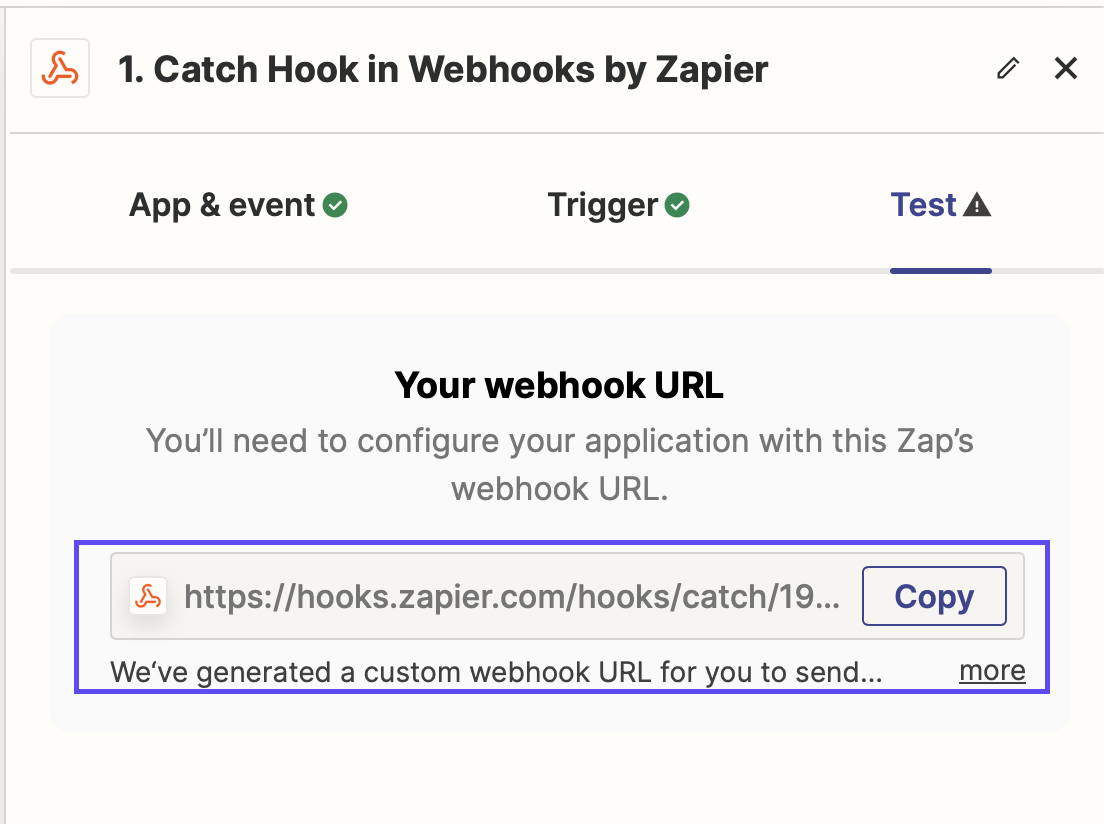
Enter this URL in the Enter the callback URL field in Lead Finesse. Select the campaign you want to connect it with and hit Create button.
 7. Set up the webhook in your CRM:
Go to your CRM and find the integration settings. Look for a webhook or custom integration option. Paste the Lead Finesse webhook URL into the appropriate field.
7. Set up the webhook in your CRM:
Go to your CRM and find the integration settings. Look for a webhook or custom integration option. Paste the Lead Finesse webhook URL into the appropriate field.
Configure the data mapping: Map the fields from Lead Finesse to the corresponding fields in your CRM. This will ensure that the data is transferred correctly.
Test the connection: Send a test message or create a test lead in Lead Finesse to verify that the data is being sent to your CRM correctly.
Note: You can use a third-party integration platform like Zapier or other Webhooks to simplify the process of connecting Lead Finesse to your CRM.
By following these steps, you can easily connect Lead Finesse to your CRM and start automating your sales process.